



You’ve decided to leave Facebook permanently, but finding the right deletion option isn’t always straightforward. You may also have photos, messages, and other personal information worth saving before your account is removed. With these concerns in mind, you may think How do I delete my Facebook account?
If so, this guide is for you. It explains the difference between deactivation and permanent deletion, provides step-by-step instructions for computers and phones, and covers what happens to your data afterward, including how long you have to cancel the request.
Delete vs Deactivate Your Facebook Account
Facebook offers two options for managing your account: temporary deactivation and permanent deletion. Deactivation hides your profile while keeping your photos, posts, and other account information. You can return whenever you want by logging back in. Permanent deletion, however, removes your account and its content once the deletion process is complete.
Here’s how the two options compare:
| Feature | Deactivate Account | Delete Account |
| Account recovery | Reactivate anytime | Cancel within a limited period; permanent afterward |
| Profile and content | Hidden, but retained | Permanently removed |
| Messenger | Can remain available | No longer available |
| Third-party logins | May require reactivation | Facebook Login stops working |
Before permanently deleting your account, consider saving any photos, videos, or other personal information you want to keep. Facebook’s Download your information feature in Accounts Center can export a copy of your account data.
Want to save specific photos or videos?
You can download Facebook photos or save Facebook videos separately. These methods are suitable if you only need certain media files rather than a complete account archive.
1: Permanently Delete Your Facebook Account on Desktop
To completely delete your Facebook account on a Windows PC or Mac, you’ll need to access Meta Accounts Center. The process is similar across browsers, although some menu locations may vary slightly.
Step 1. Open Facebook in your browser and sign in. Click your profile picture in the top right corner, select Settings & privacy, then Settings.
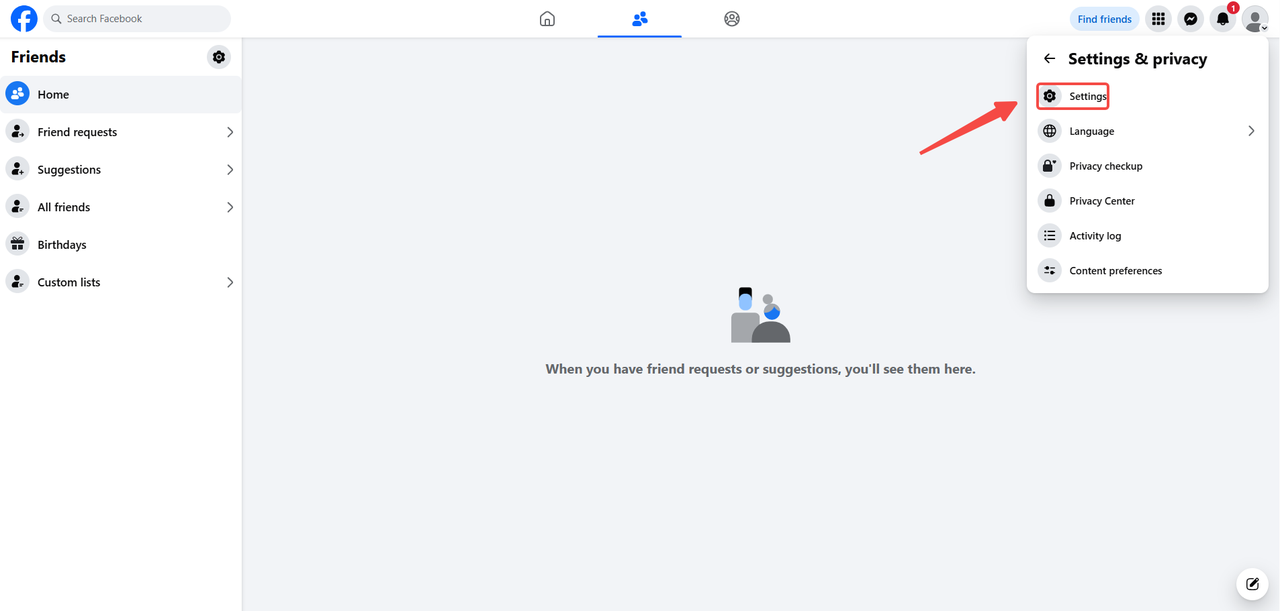
Step 2. Open Accounts Center from the Settings page. Under Account Settings, click Manage account.
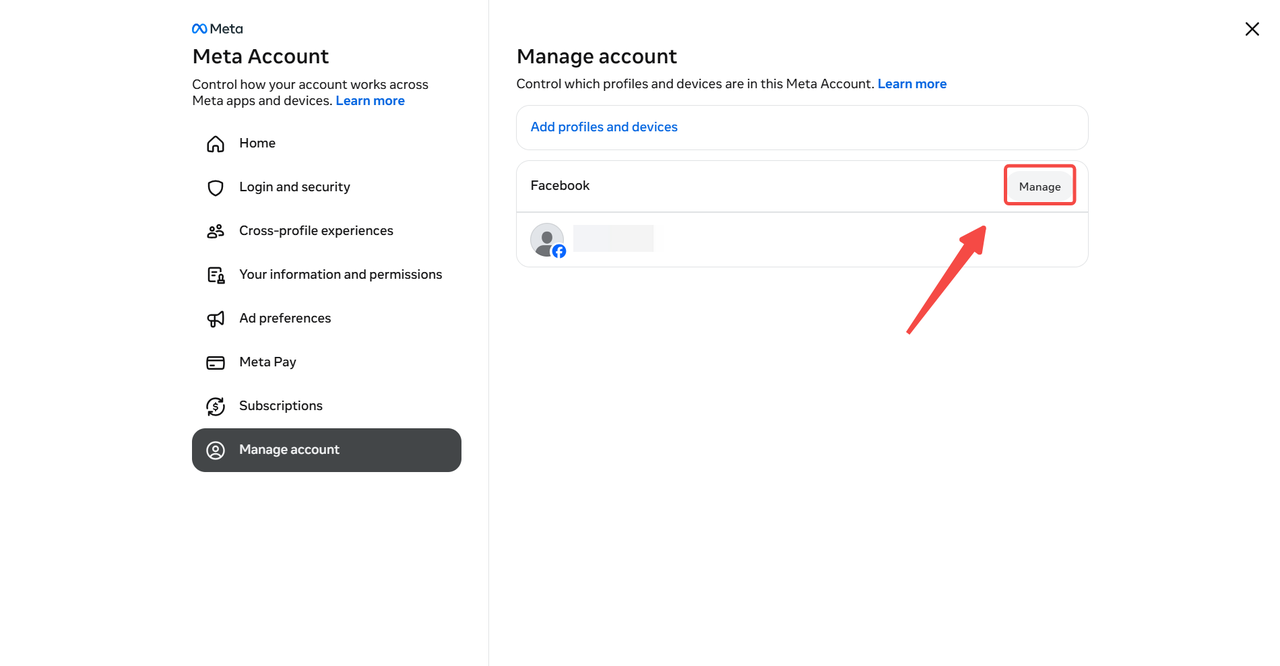
Step 3. Select Account ownership and control, then click Deactivation or deletion.
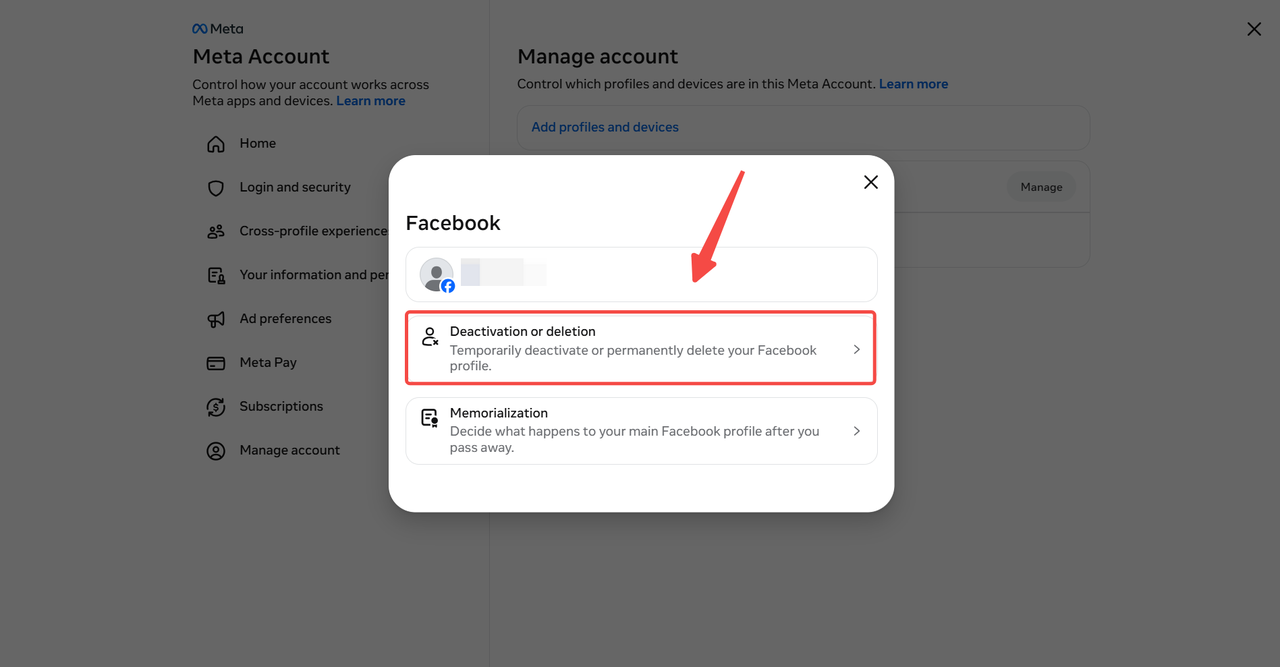
Step 4. Choose the Facebook account or profile you want to remove. Select Delete account and click Continue.
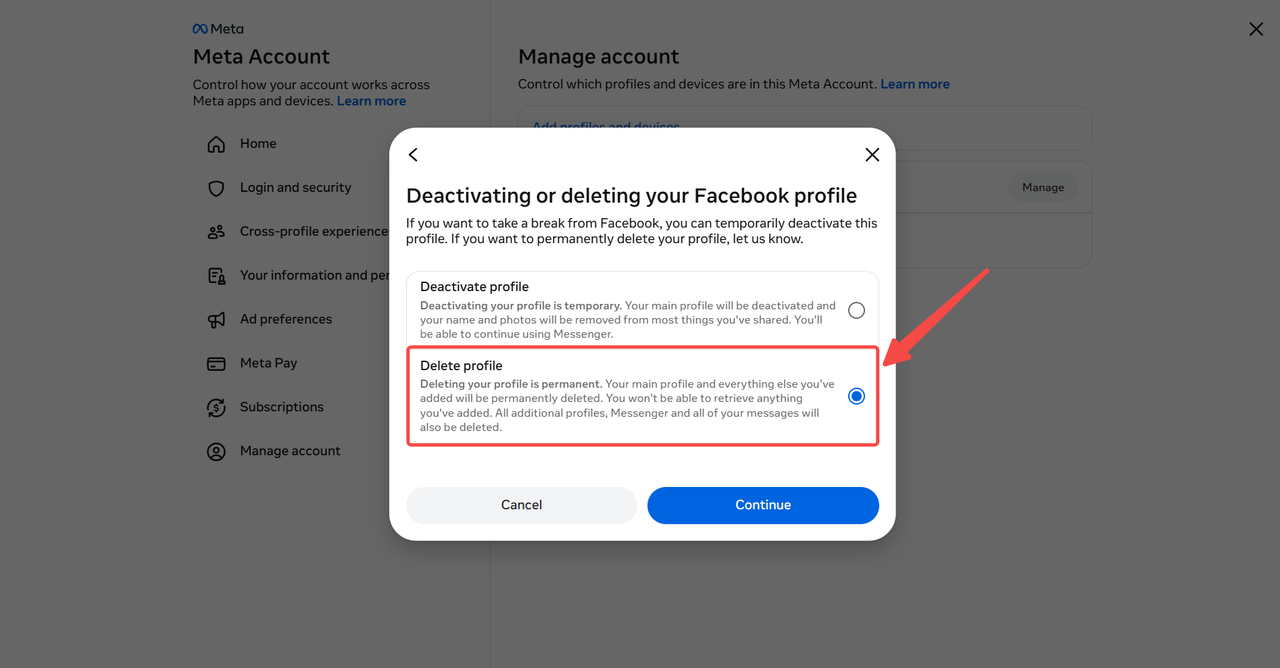
Step 5. Follow the remaining prompts, enter your password if requested, and complete the final confirmation to submit your deletion request.
Note: Accounts Center may display multiple connected accounts or profiles. Make sure you’ve selected the correct Facebook account before confirming. Removing an account from Accounts Center is not the same as deleting it.
2: Delete Your Facebook Account on iPhone or Android
The process for deleting your Facebook account on your phone is nearly identical on iPhone and Android. Both use Meta Accounts Center, although the Menu icon may appear in different locations depending on your device and app version.
Step 1. Open the Facebook app and tap your profile picture in the top right corner.
Step 2. Select Privacy Center, then tap Manage your accounts.
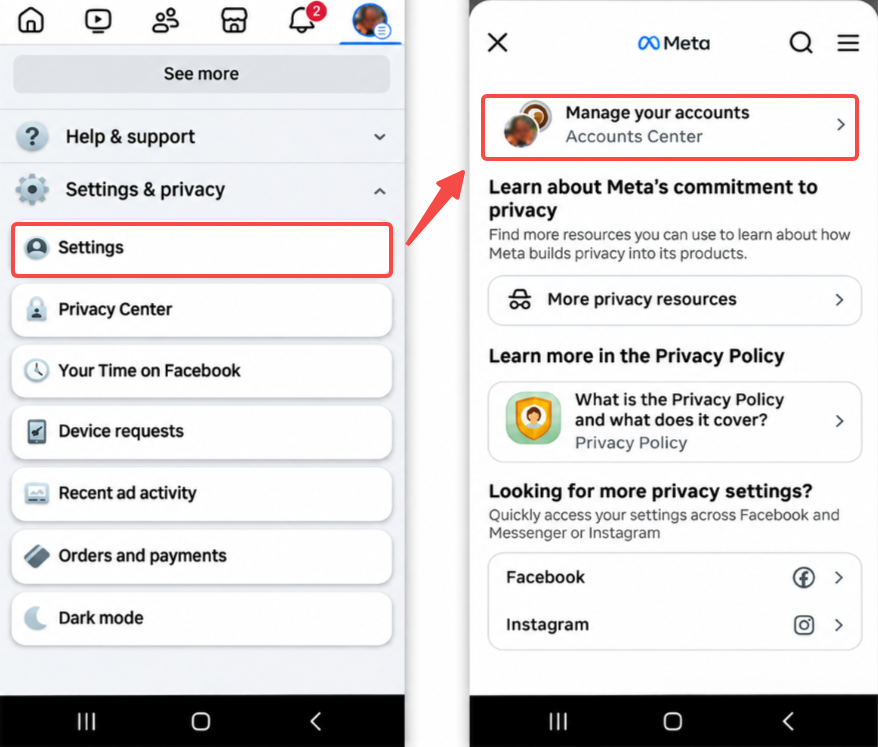
Step 3. Select Personal details, then Account ownership and control.
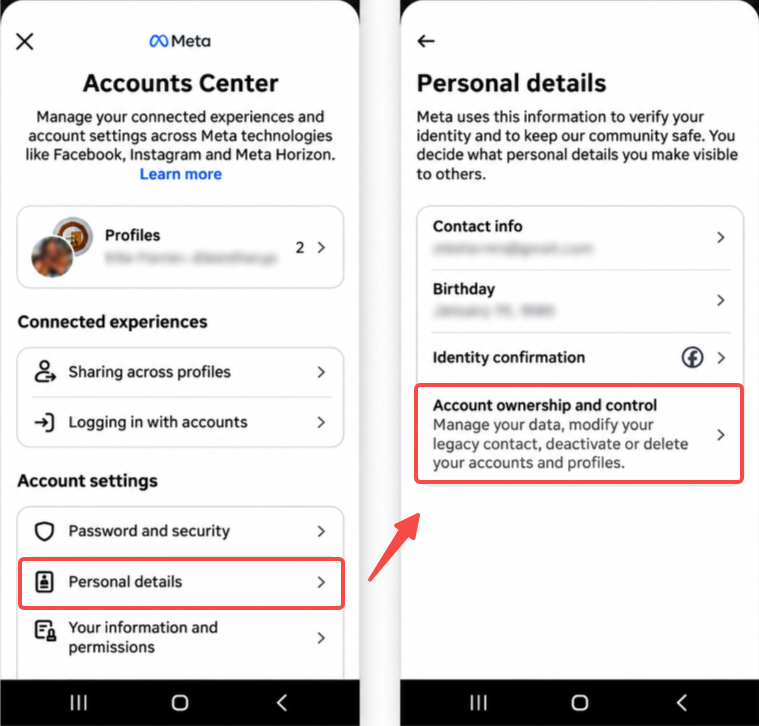
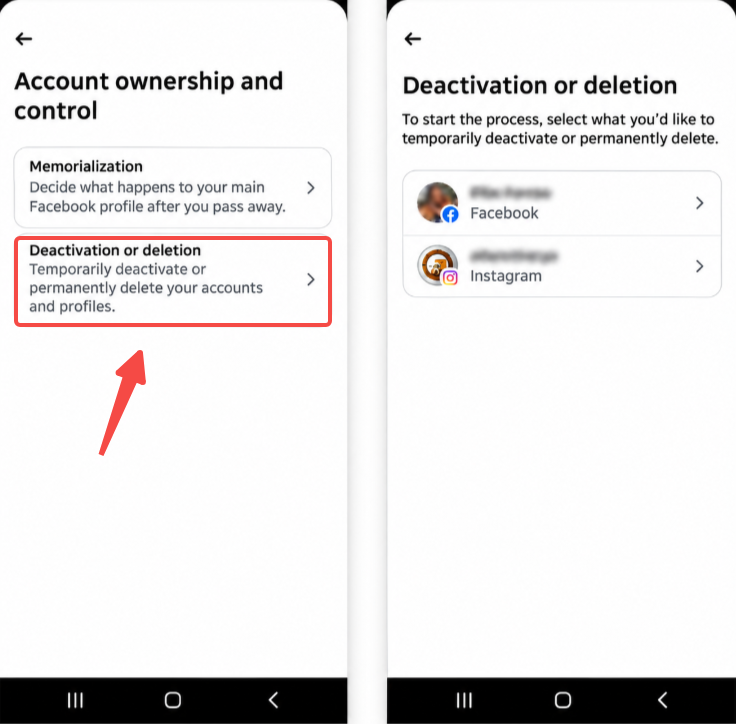
Step 4. Tap Deactivation or deletion, select your Facebook account, and choose Delete account. Tap Continue, then enter your password to confirm the deletion.
Note: The Facebook app isn’t required for this process. You can also sign in through Safari or Chrome on your phone and follow the account deletion steps through Facebook’s website.
What Happens After You Delete Your Facebook Account
The steps above explain how to close your Facebook account permanently, but submitting a deletion request doesn’t remove everything immediately. Facebook provides a limited period to cancel the request, while the complete removal of account data takes longer. Here’s what happens after you confirm deletion:
- 30-day cancellation period: Facebook typically gives you 30 days to reverse your decision. After this period, your account cannot be recovered. The exact deadline may vary by region.
- Up to 90 days for data removal: Facebook may take up to 90 days from the start of the deletion process to remove your posts, photos, and other content. Some information may remain longer in backups or for legal and security reasons.
- Loss of Messenger and connected logins: You will lose access to Messenger through the deleted account. Apps and websites that rely on Facebook Login may also require another sign-in method.
- Previously sent messages: Messages you sent to other people may remain in their inboxes even after your account is deleted.
- Facebook Pages and Meta Quest: Pages that only you control may be deleted unless you transfer full control beforehand. Meta Quest access may also be affected if it depends on your Facebook account, although a separate Meta account is not automatically deleted.
If you change your mind, Facebook’s official account deletion guide explains how to reverse the request. Simply log back into your account within the cancellation period and select Cancel Deletion. Once that period ends, the deletion cannot be reversed.
Frequently Asked Questions
How Do I Delete My Old Facebook Account?
To delete your old Facebook account, you first need to regain access to it. Facebook’s account recovery page helps you locate the account using your previous email address or phone number. Once your identity is verified and access is restored, you can follow the standard deletion steps. Recovery isn’t guaranteed without sufficient verification.
How to Delete Facebook Account Without Password
If you’ve forgotten your Facebook password, select Forgot password? on the login page. Enter your registered email address or phone number to receive a recovery code and reset your password. After signing back in, you can delete the account through Accounts Center. Without access to your recovery methods, additional identity verification may be required.
Final Verdict
Knowing how to delete your Facebook account helps you make the right choice between permanent deletion and temporary deactivation. Both computers and phones provide access to the deletion settings through Meta Accounts Center. Before submitting your request, make sure you’ve saved any photos, messages, or other information you want to keep. Facebook provides a limited cancellation period, after which your account cannot be recovered.


2 comments