


Check SSD Health: 5 Deadly Warning Signs Exposed
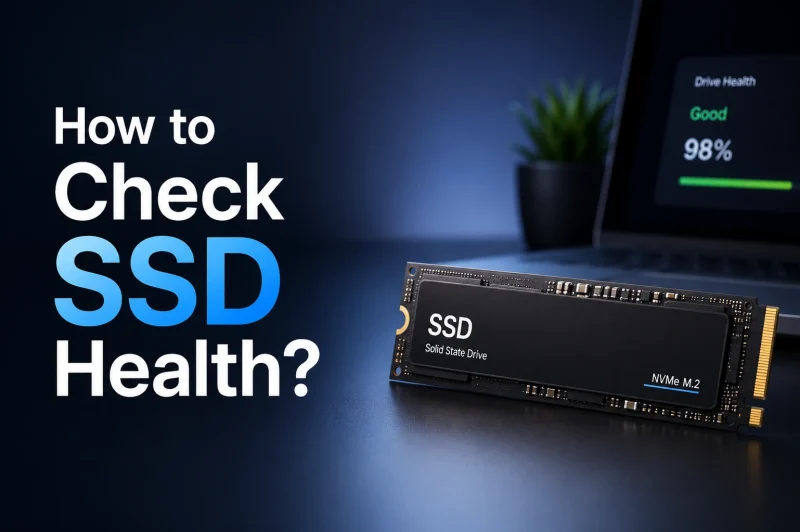
Solid-state drives offer incredible read and write throughput, but their silence makes diagnosing component degradation tricky. Unlike legacy mechanical hard drives that emit grinding or clicking sounds before failure, solid-state media often stop working with zero auditory warning. If you want to protect your operating system, family photos, and critical work files, you must regularly check SSD health using low-level diagnostic telemetry.
Flash storage utilizes NAND cells that degrade with every write and erase cycle. When wear leveling pools deplete or the controller chip overheats, file transfers freeze and drives drop into unrecoverable read-only states. Deciding to actively check SSD health helps you detect block degradation weeks before catastrophic failure occurs.
Here are 5 critical warning signs of storage decay, along with tested diagnostic routines you can use right now to check SSD health safely.
1. Check SSD Health Using Native S.M.A.R.T. Telemetry
The most reliable way to assess drive longevity is to analyze Self-Monitoring, Analysis, and Reporting Technology (S.M.A.R.T.) telemetry. Built into every solid-state controller, this logging system tracks background block reallocations, power-on hours, and total host writes.
To properly check SSD health, run dedicated diagnostic software like CrystalDiskInfo or vendor-specific suites from Crucial to read the raw hex registers.
Critical SMART Attributes to Monitor
- Available Spare (ID 03 on NVMe): Indicates the percentage of reserve flash memory blocks remaining. When this drops below 10%, the drive is nearing end-of-life.
- Percentage Used (ID 05 on NVMe): Estimates the consumed endurance based on factory ratings. A metric of 100% does not mean immediate failure, but warranty coverage has expired.
- Media and Data Integrity Errors (ID 0E): Any number greater than zero points directly to unrecoverable read errors where the ECC (Error Correction Code) failed.
- Unsafe Shutdowns: Tracks sudden power losses that trigger metadata corruption inside the flash translation layer.
Monitoring these background telemetry points gives you actionable insight into flash longevity. For more hardware tutorials and maintenance checklists, browse our hardware teardowns in Hardware & Gadgets and practical tuning strategies in Tech Guides.
2. Check SSD Health When Sudden Read-Only Lockups Occur
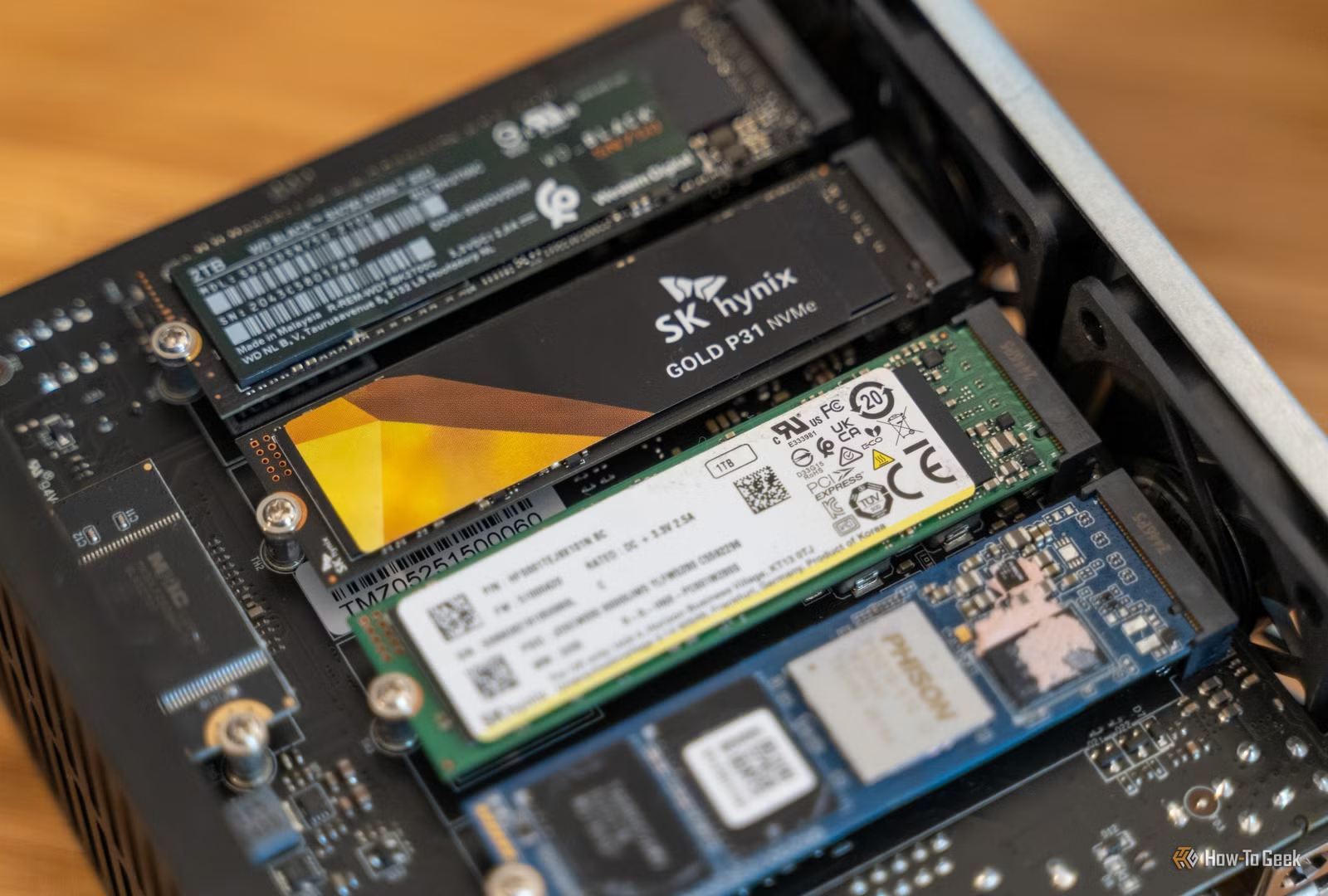
One common warning sign of failing flash media is the sudden appearance of read-only file system locks. When an SSD controller discovers that reserve bad-block sectors are fully exhausted, it engages an emergency hardware protection state:
Plaintext
Error: The disk is write-protected. Remove write-protection or use another disk.
When this occurs, the controller disables all incoming write operations to protect surviving data from corruption. You can open files, read documents, and copy archives off the drive, but you cannot delete logs, update software, or install patches.
If Windows suddenly fails to write temporary files or your browser refuses to update its profile cache, immediately check SSD health. Once a drive enters emergency read-only mode, the memory controller is unstable and can fail to enumerate on the next system reboot.
To ensure system tasks are not misconfigured or misidentified as hardware faults, check our optimization steps in How-To & Tutorials.
3. Check SSD Health to Catch Silent Data Corruption Early
Another dangerous indicator of failing storage is silent bit rot. As flash memory cells wear down, their floating-gate or charge-trap layers lose the ability to reliably hold electrical charges. This leads to subtle data corruption where files become unreadable without clear operating system warnings:
- Archive Extraction Failures: Compressed .zip or .7z archives that opened cleanly in previous weeks suddenly throw CRC (Cyclic Redundancy Check) mismatch errors.
- Blue Screen of Death Crashes: Frequent Windows stop codes like CRITICAL_PROCESS_DIED or KERNEL_DATA_INPAGE_ERROR often point to damaged system DLLs stored on degrading flash blocks.
- Missing Directory Indexes: Entire subdirectories intermittently disappear from File Explorer, only to reappear after a full system restart.
When you notice unexplained software crashes, do not assume it is simply an application bug. Take a moment to check SSD health to rule out decaying storage cells before you troubleshoot application code. You can review how modern operating system tasks behave in our application guides in Software & Apps.
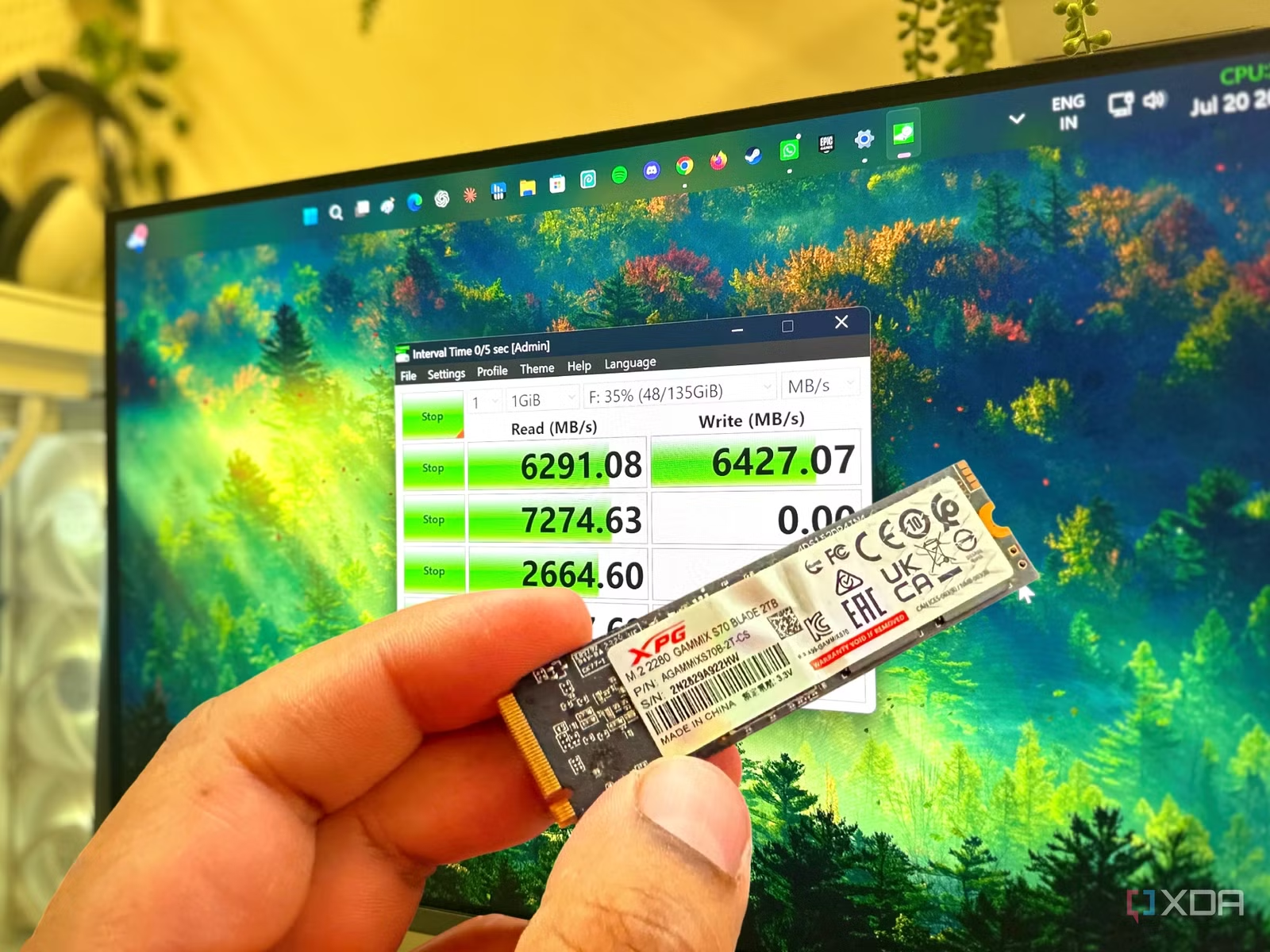
4. Check SSD Health by Monitoring Severe Thermal Throttling
Solid-state drives, particularly Gen4 and Gen5 NVMe models, generate substantial heat under continuous write operations. While NAND flash actually performs well at moderately warm temperatures (around 40°C to 50°C), the drive’s memory controller requires active cooling.
Operating an NVMe drive without an adequate heat sink causes thermal throttling that severely degrades user experience:
| SSD Metric | Optimal Temperature Range | Throttling / Danger Zone | Result of Sustained Operation |
| NAND Flash Cells | 30°C to 55°C | Above 70°C | Accelerated cell degradation and charge leakage. |
| SSD Controller | 40°C to 65°C | Above 80°C | Aggressive thermal throttling, freezing, and bus resets. |
| Sequential Write Speed | 5,000+ MB/s | Below 200 MB/s | Severe transfer drops, mirroring slow mechanical drives. |
When high temperatures persist, the controller drops its interface bandwidth to protect the circuit board. If file transfers drop from gigabytes-per-second to sluggish mechanical speeds, use hardware diagnostic utilities to check SSD health and inspect your motherboard’s thermal pads.
To explore how high-performance components dissipate heat efficiently, see our analysis in Emerging Tech & AI.
5. Check SSD Health to Spot File System Event Errors
Your operating system constantly monitors storage controllers for low-level protocol timeouts. Windows tracks these anomalies inside the system Event Viewer long before they manifest as visible software freezes:
- Right-click the Start Button and select Event Viewer.
- Expand Windows Logs in the left sidebar and click System.
- In the right-hand panel, click Filter Current Log.
- Check the boxes for Critical and Error, then set the Event sources to stornvme, disk, and ntfs.
- Click OK.
If the log displays repetitive warnings such as “The device, \Device\Harddisk0\DR0, has a bad block” or “The driver detected a controller error on \Device\RaidPort0”, your drive is actively failing its hardware-level checksum validations.
Taking the initiative to check SSD health as soon as these system events surface gives you the window needed to mirror your partitions before the controller disconnects permanently from the PCIe bus.
Protecting Your Files After an SSD Health Diagnostic
Consistently choosing to check SSD health ensures that aging storage hardware never catches you off guard. Solid-state technology is reliable, but flash wear, electrical spikes, and controller solder degradation remain real hardware risks.
If your diagnostic scans indicate that available spare blocks have dropped below 15% or uncorrectable sector errors are climbing, treat the drive as compromised:
- Back Up Immediately: Connect an external storage volume and copy your personal documents, software libraries, and authentication databases before running further benchmarks.
- Avoid Heavy Stress Tests: Do not run aggressive read/write stress loops on a failing drive. Forcing sustained write workloads on unstable flash accelerates hardware collapse.
- Replace With Quality Hardware: Choose replacement drives equipped with dedicated DRAM caches and high endurance ratings (TBW – Terabytes Written) to guarantee years of reliable operation.
Staying proactive allows you to check SSD health regularly, spot hardware decay in its earliest stages, and preserve your data without experiencing sudden digital downtime.