



Block Network Ads: 5 Dangerous Pi-hole Mistakes Exposed
Traditional browser extensions work well on desktop computers, but they leave mobile devices, smart TVs, and streaming boxes exposed to tracking scripts and promotional banners. If you want seamless ad-free browsing across your entire home network, the definitive strategy is to block network ads at the router level using a dedicated Domain Name System (DNS) sinkhole.
Deploying a local DNS filter like Pi-hole intercepts tracking beacons before content ever reaches your screens. However, attempting to block network ads without a clear understanding of upstream resolvers and firewall rules can introduce noticeable page latency and break legitimate web services.
Here are 5 critical setup mistakes users encounter when trying to block network ads, along with proven configurations to keep your home network secure, agile, and free of interruptions.
1. Block Network Ads Without Overloading Aggressive Blocklists
A frequent blunder beginners commit when trying to block network ads is subscribing to massive, unvetted public blocklists containing millions of domains. In DNS filtering, more is not necessarily better.
When your list is excessively strict, you end up blocking Content Delivery Networks (CDNs), authentication gateways, and API endpoints needed for standard services:
- Broken Streaming Services: Aggressive regex rules frequently match video telemetry domains, causing streaming apps on smart TVs to fail to play content.
- Malfunctioning Mobile Apps: Banking applications and mobile payment systems often rely on analytics pings to verify device integrity; dropping these queries causes mobile apps to crash.
- Excessive False Positives: Manually troubleshooting dozens of false-positive domains across different device profiles creates continuous administrative friction.
To reliably block network ads without disruptions, start with the audited default gravity lists curated by the official Pi-hole Project. Maintain a minimal blocklist of high-confidence ad-serving domains and whitelist service endpoints on a strict as-needed basis.
You can check our performance optimization walkthroughs in Tech Guides and essential software setups in Software & Apps.
2. Block Network Ads by Enforcing Router-Wide DHCP Redirection
Many setups fail to block network ads across all household hardware because the DNS address is only entered on a single desktop computer. If you want comprehensive protection, you must configure your network DHCP server to distribute your local sinkhole address automatically:
Plaintext
Local Network Gateway: 192.168.1.1
Primary DNS (Assigned by DHCP): 192.168.1.50 (Pi-hole IP)
Secondary DNS: [Leave Blank or Point to Secondary Pi-hole Instance]
The Secondary DNS Trap
Never set a public resolver like 8.8.8.8 or 1.1.1.1 as your secondary DNS in your router settings. Operating systems do not use secondary DNS as a simple backup; they query both addresses simultaneously. If a public DNS address responds faster than your local hardware, your device will bypass the sinkhole, causing ads to reappear.
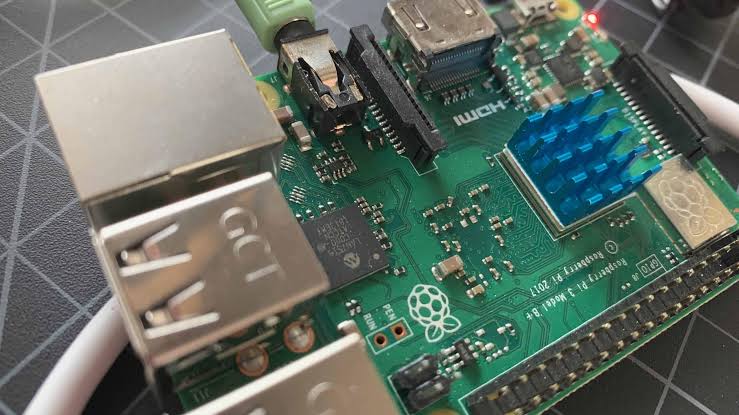
If you are concerned about uptime when you block network ads, deploy two synchronized micro-instances (such as two budget single-board computers) to provide true hardware redundancy.
To review how local low-power hardware operates quietly around the clock, browse our system analyses in Hardware & Gadgets.
3. Block Network Ads While Handling Hardcoded Device DNS
Consumer electronics manufacturers increasingly hardcode public DNS servers into smart TVs, streaming dongles, and smart speakers. These gadgets bypass your local DHCP settings entirely to ensure their advertising metrics reach corporate servers.
To effectively block network ads on stubborn smart devices, you must implement port forwarding rules inside your router firewall:
- Access your router or firewall configuration console (such as pfSense, OPNsense, or OpenWrt).
- Create a Network Address Translation (NAT) port redirect rule.
- Intercept all outbound traffic targeting destination port 53 (UDP/TCP).
- Redirect those packets directly to your local sinkhole server address.
This firewall rule forces all rogue DNS queries back into your local filter. Even if an internet-connected appliance attempts to contact an external server directly, your network quietly redirects the query, preserving your ability to block network ads universally.
For additional troubleshooting and administrative steps, see our setup manuals in How-To & Tutorials.
4. Block Network Ads Without Neglecting Encrypted Upstream DNS
While a DNS sinkhole prevents trackers from loading on your local devices, standard unencrypted DNS requests still travel across the wider internet as cleartext. Your Internet Service Provider (ISP) can still log every domain you visit.
To properly block network ads and maintain complete network confidentiality, pair your local filter with an encrypted upstream resolver like DNS-over-HTTPS (DoH) or DNS-over-TLS (DoT):
| DNS Architecture | Local Ad Blocking | ISP Visibility | Latency Overhead |
| Standard ISP DNS | None | Total visibility into visited domains. | Lowest (<10ms) |
| Basic Pi-hole DNS | Full local blocking | Full ISP domain resolution logs. | Minimal (<12ms) |
| Pi-hole + Cloudflared (DoH) | Full local blocking | Encrypted tunnels; hidden from ISP. | Low (+5ms) |
| Pi-hole + Unbound Recursive | Full local blocking | Complete privacy; queries Root Anchors directly. | Moderate (+15ms on first query) |
Configuring a recursive resolver like Unbound turns your local setup into an independent resolver that queries global root servers directly, removing third-party monitoring entirely.
To explore how decentralized infrastructure transforms digital privacy, check out our coverage in Emerging Tech & AI.
5. Block Network Ads by Mitigating DNS Loop Vulnerabilities
A subtle yet disruptive misconfiguration occurs when your sinkhole server points back to the router for local domain resolution, while the router simultaneously points forward to the sinkhole. This circular dependency creates a high-volume DNS loop that can overwhelm your local network:
- Spiking Processor Temps: The single-board computer’s CPU spikes to 100% capacity processing infinite loops of internal hostname queries.
- Network Freezes: Valid web queries stall out because the local DNS query buffer becomes completely saturated.
- Bloated Database Logs: Query logs swell to millions of entries within hours, consuming storage drive space and crashing internal databases.
To block network ads cleanly without loop errors, disable “Conditional Forwarding” unless your local network domain search suffixes and subnets are configured precisely. Assign static local IP addresses to all essential machines and keep local hostname tables managed inside the sinkhole’s custom hosts file.
Verifying Network Ad Blocking Efficiency
Once your firewall rules and upstream resolvers are active, verify that your configuration can successfully block network ads using reproducible diagnostics:
- Open your desktop terminal and run nslookup doubleclick.net.
- Ensure the returned address resolves to 0.0.0.0 or your sinkhole’s loopback address rather than a public external IP.
- Open a media streaming hub or launch mobile applications that typically display interstitial promotional banners.
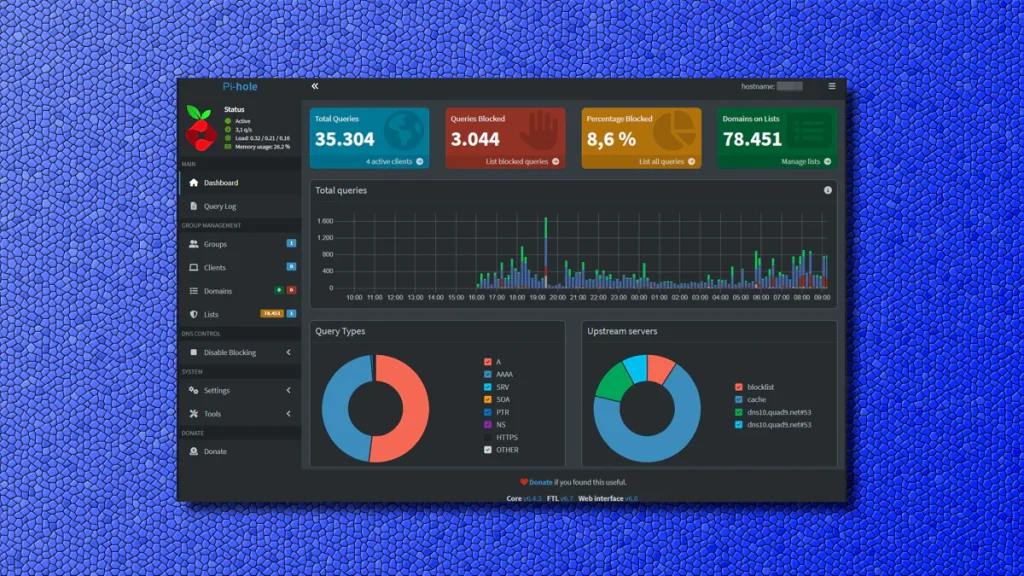
- Monitor the live Query Log on your admin dashboard to verify that incoming requests are categorized correctly as blocked or forwarded.
Implementing a central DNS sinkhole provides network-level control over your data. When you take the time to block network ads properly, you improve page rendering speeds, lower bandwidth usage, eliminate device tracking, and reclaim a clean, uninterrupted browsing experience across every screen in your home.