




Nothing ruins high-end performance faster than sudden, aggressive thermal throttling. You invest in top-tier mobile silicon, only to watch clock speeds collapse and frame rates stutter the moment your CPU hits its temperature ceiling. Modern slim chassis designs constantly prioritize thin profiles over airflow, turning heavy workloads into a battle against heat soak.
Tolerating intense thermal throttling degrades the lifespan of internal components and starves your system of the power you paid for. Resolving high temperatures requires direct, practical adjustments. Use these 5 battle-tested fixes to eradicate thermal throttling, maintain boost clocks, and stabilize your mobile workstation.
1. Diagnose Your Thermal Throttling Limits
Before modifying hardware, identify whether your machine suffers from VRM power throttling or direct silicon thermal throttling. Modern laptop processors have strict junction temperature limits (often labeled TjMax), typically set around 95°C to 105°C.
- Download and launch the diagnostic utility HWiNFO.
- Run sensors in the background while launching a synthetic load such as Cinebench or playing a demanding modern title.
- Observe the “Core Thermal Throttling” flags under your CPU sensors.
If the value switches to “Yes” while clocks drop by 300MHz to 800MHz, your cooling assembly cannot dissipate heat fast enough. Recognizing this limit lets you verify fixes accurately instead of guessing.
2. Eliminate Heatsink Dust Dams
The primary physical trigger for unexpected thermal throttling is compacted lint and dust blocking your exhaust fins. Laptop blowers push air through tightly packed copper heatsinks; over 6 to 12 months, dust forms a solid blanket between the fan outlet and radiator fins.
- Power off the laptop, disconnect the AC adapter, and open the bottom chassis.
- Disconnect the battery terminal before touching internal electronics.
- Hold the fan blades stationary with a finger or plastic pry tool (allowing compressed air to spin fans freely can induce electrical back-current into the motherboard).
- Blast compressed air from the outside vents inward, then sweep the dislodged lint out with an anti-static brush.
Clearing airflow obstructions often lowers core temperatures by 5°C to 10°C, immediately reducing occurrences of thermal throttling.
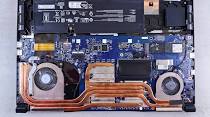
3. Replace Degraded Factory Thermal Paste with Phase Change Material
Factory thermal compounds applied on OEM assembly lines dry out quickly and suffer from “pump-out”—where thermal expansion pushes compound away from the bare die. This loss of direct contact triggers instant thermal throttling on single core spikes.
To eliminate pump-out-induced thermal throttling, avoid generic silicone pastes and upgrade to industrial phase-change pads like Honeywell PTM7950.
| Interface Material | Durability | Resistance to Thermal Throttling | Pump-Out Risk |
| Stock OEM Paste | Low (3–6 months) | Poor (degrades quickly) | High |
| Standard Enthusiast Paste | Medium (6–12 months) | Decent initially | Moderate |
| PTM7950 Phase Change | Multi-year | Outstanding (melts into die pores) | Virtually None |
Carefully unscrew the heatsink in reverse numerical order, clean the copper blocks with 99% isopropyl alcohol, apply the phase-change pad directly over the bare CPU and GPU dies, and re-torque screws evenly.
4. Fine-Tune Power Limits to Prevent Thermal Throttling
When physical airflow reaches its limit, managing short-term and long-term package power targets (PL1 and PL2) prevents temperatures from escalating out of control. Running a processor at 90W for a marginal 3% clock bump generates disproportionate heat, driving the chip straight into thermal throttling.
- For Intel Systems: Use utilities like ThrottleStop to adjust the primary power limits down by 5W to 10W. Capping peak boost wattage stabilizes clocks and stops the steep thermal spikes that cause stuttering.
- For AMD Systems: Use Ryzen Controller or Universal x86 Tuning Utility to establish a strict temperature ceiling (e.g., capping the chip at 85°C), forcing the CPU to scale boost curves gracefully rather than crashing into harsh thermal throttling.
Lowering power limits by just 10% can eliminate thermal spikes entirely while preserving over 95% of peak computing performance.
5. Elevate the Intake Vents and Use High-Pressure Cooling
The clearance between a laptop’s bottom intake grilles and a flat desk surface is usually less than 4 millimeters. Starving the fans of cold air guarantees continuous thermal throttling during rendering or long gaming sessions.
- Simply elevating the rear edge of your laptop by half an inch using a stand drops ambient intake temperatures by 3°C to 5°C.
- For extreme workloads, choose a sealed-gasket cooling stand (such as the IETS GT500 or Llano coolers). Unlike standard USB fans that blow ambient air loosely against plastic covers, sealed units force filtered, high-pressure air directly through internal heatsinks, completely ending thermal throttling.
Regular maintenance, clean radiator paths, and calibrated power limits ensure sustained performance without unwanted downclocking under heavy computing loads.